The XML tab enables you to efficiently manage and package OneStream objects and solutions with XF Projects.
-
Create new XF Project files
-
Edit and manage existing XF Project files
-
Load and extract XF Project files
IMPORTANT: In the XML tab, the available actions and configuration options depend on your current platform version. For example, Platform Version 9.4.0 or later is required to perform load and extract operations. See Appendix B: XML Project Item Configuration and Compatibility.
Manage XML Items
An XML item represents an XF Project file. When you create an XF Project file, Developer Studio enables you to select application items from the OneStream environment you are connected to. The XF Project file template is generated from the OneStream environment items you select during creation. You can also open an existing XF Project file, view the contents, and add or remove items.
Create XF Project Files
To create an XF Project file, complete the following steps:
-
Select the Add Item button.
-
In the New XF Project window, configure the following properties:
Property Description Name The name must be unique. When you enter a name, .xfproj is automatically appended. Location Select a folder location for the file in your repository folder. Top Folder Path (Optional) This is a subfolder within the project file location where extracted content is placed. Default Zip File Name (Optional) The value entered in this field is the default file name when extracting the project to a zip file. When you enter a file name, .zip will be automatically appended when you extract the XF Project item. -
Select the Add Project Item button.
-
In the Project Items grid, configure project items:
Property Description Type This drop-down menu lists all XF Project item types. To view all item types, see Appendix B: XML Project Item Configuration and Compatibility.
This property selection filters the other property options and determines whether they are applicable. For example, selecting a business rule type disables the Workspace and Include Descendants properties and filters the Name property's search drop-down menu to only display business rules in the application.
Workspace The Workspace associated with the project item. A Workspace selection is required for specific item types. If the item type does not belong to a Workspace, this property is not available. See Appendix B: XML Project Item Configuration and Compatibility.
For items that are available at both the application level and in Workspaces, like Cube View groups, leaving the Workspaces property blank sets it at the application level (Default Workspace).
Name This drop-down menu lists all items of the selected type in your application. Depending on your current platform version and the item type selected, this property may not display application items. See Appendix B: XML Project Item Configuration and Compatibility. If the drop-down menu does not display items in your application, you must manually enter the name.
NOTE: The same name can exist at the application level and inside one or more Workspaces at the same time. When that occurs, the Workspace is what distinguishes them.
Folder Path The name of the subfolder where the project item type is extracted. If this property is left blank, items are extracted to the default location. If the specified folder path does not exist, it is created during extract. Include Descendants This specifies whether child items should be included when processing the project item. For example, when extracting a Workspace and setting Include Descendants to True, all objects contained in that Workspace are also extracted. This property defaults to True. If the item type does not include descendants, like business rules, this property is not available. NOTE: See Appendix B: XML Project Item Configuration and Compatibility for item types, configuration notes, and compatibility details.
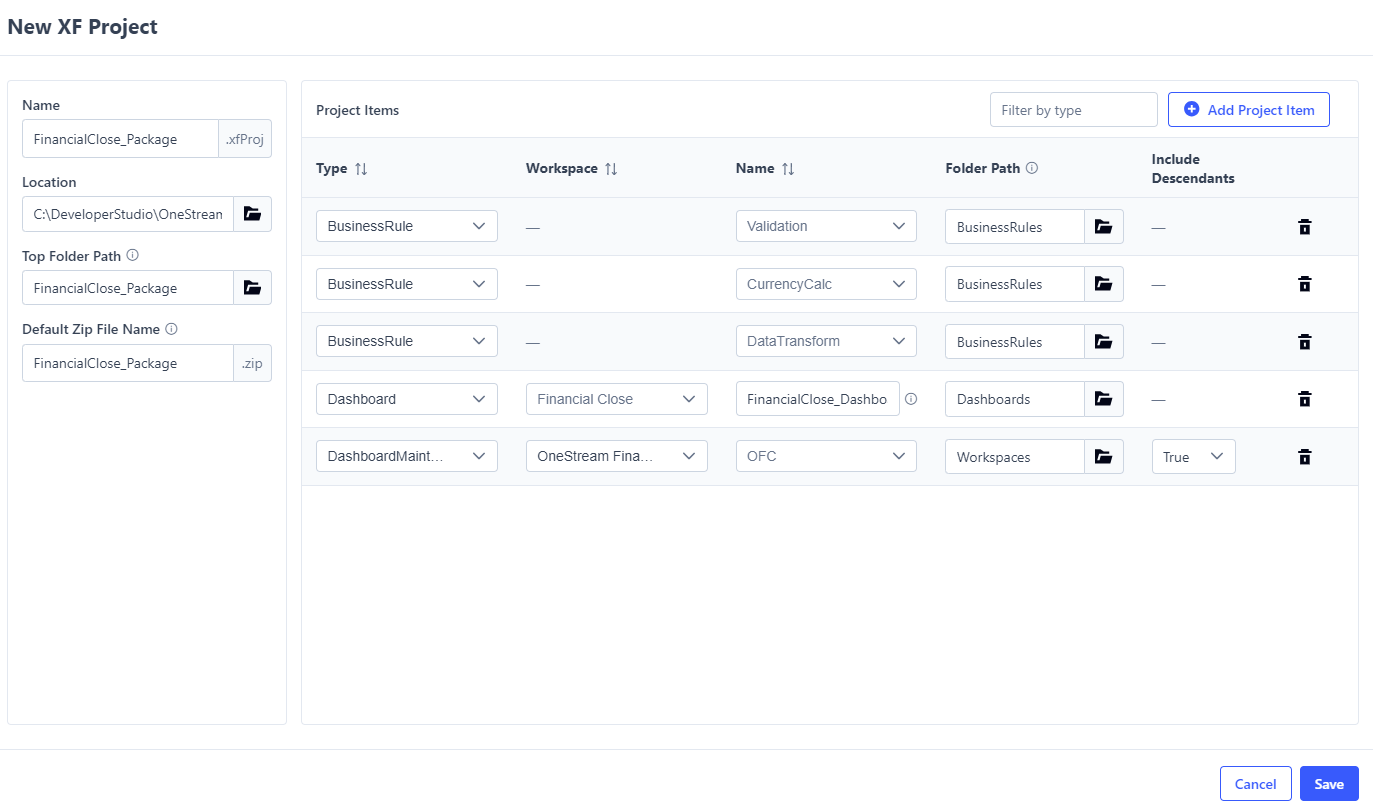
To remove a project item, select the Remove Project Item
 icon.
icon. -
Select the Save button.
Edit XF Project Files
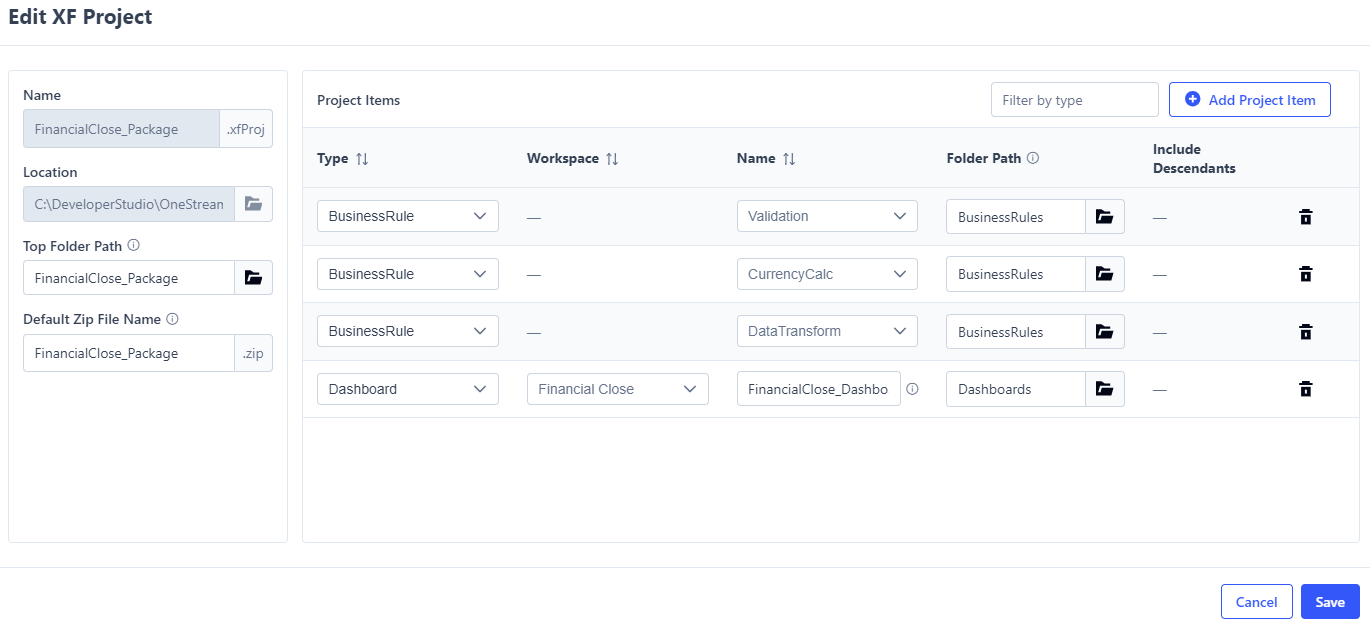
To edit an XF Project file, hover over the XML item and select the ellipses or right-click on the item to display the context menu. Select Edit to display the Edit XF Project window.
NOTE: The Name and Location properties cannot be edited.
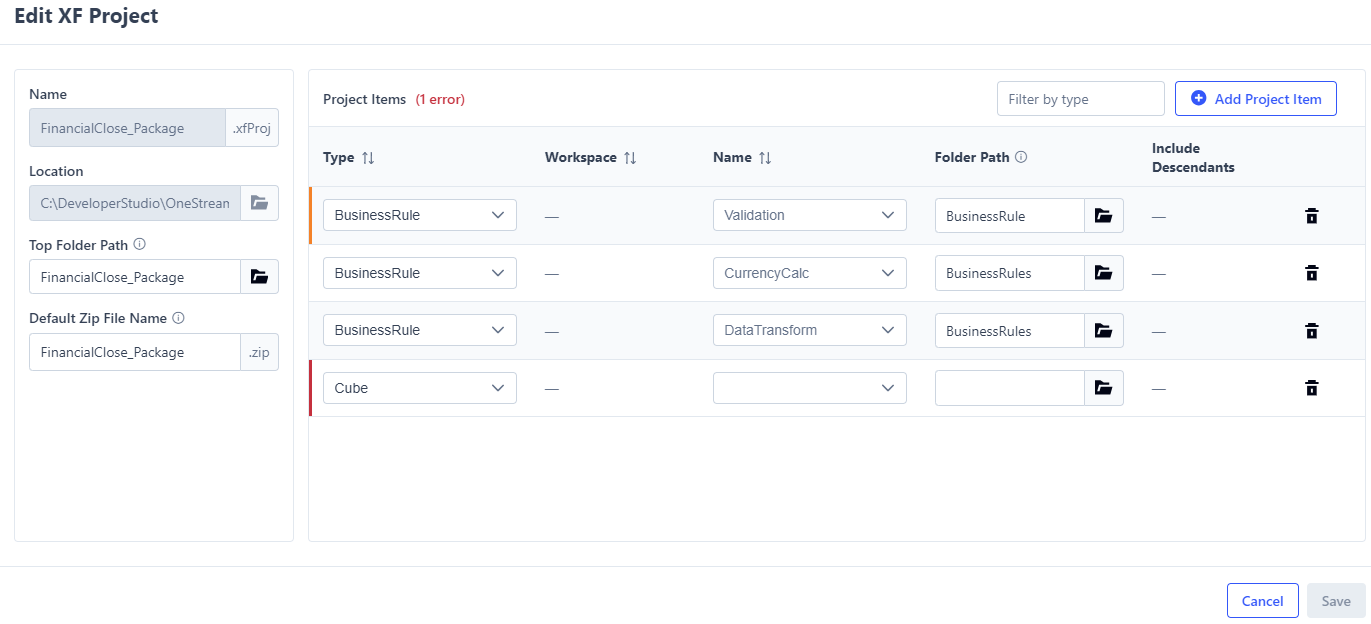
When a project item is edited, the Edit XF Project row displays an orange indicator to show that it has been modified. If a modification is invalid, the row displays a red indicator.